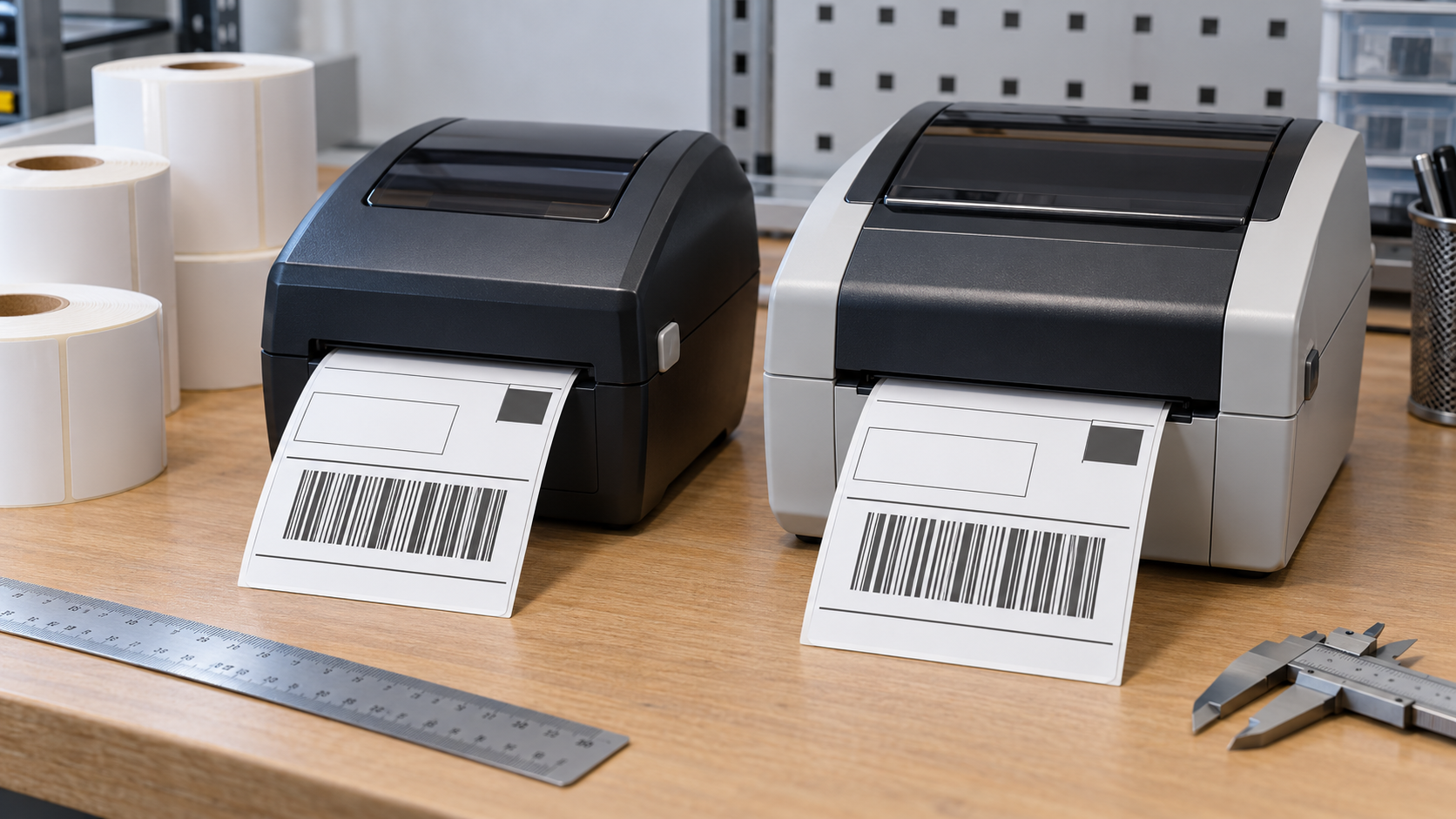
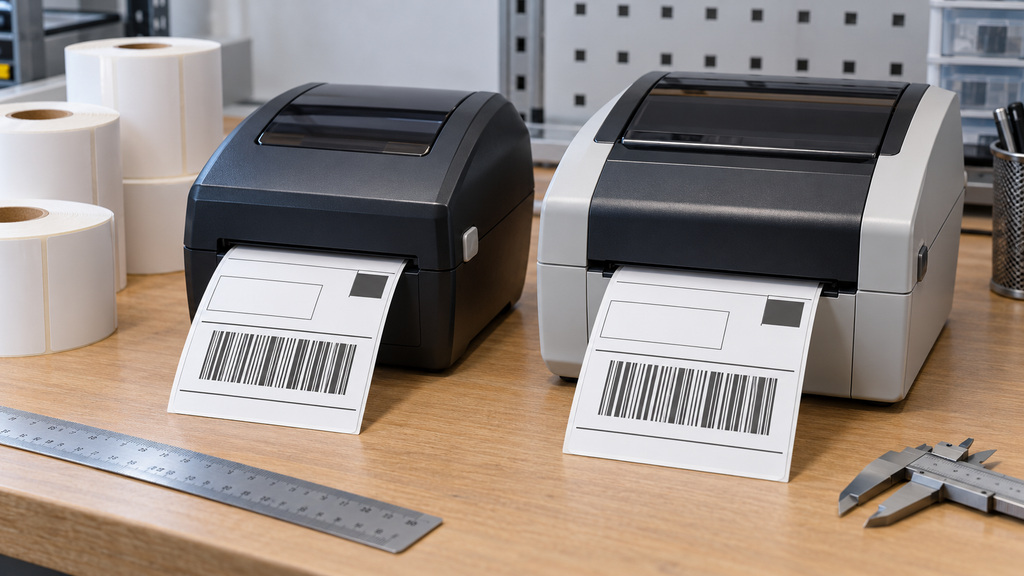
The same label file can print well on one thermal printer and poorly on another. Differences in resolution, printhead condition, media sensing, driver settings, and print speed can move a barcode or change its contrast. Standardization begins with a defined output and a controlled test, not with copying one printer’s settings into every device.
Define what must be identical
List the labels that matter: shipping, product, inventory, returns, and compliance labels. For each, record physical size, gap or mark type, orientation, required fields, barcode symbology, minimum text size, and scanner used downstream. Keep a real approved sample beside the digital template. A screenshot is not enough because it cannot show edge position, adhesive placement, or print density.
Decide which differences are harmless. A minor font rendering change may be acceptable if text remains legible. A barcode clipped by one millimeter, a missing lot digit, or a code too close to the edge is not. Agree on acceptance criteria before testing, so teams do not approve a label because it merely looks similar.
Separate template, driver, and printer settings
There are three places a difference can enter. The label template sets layout and data. The operating system driver or print service may scale or rotate it. The printer controls heat, speed, media sensing, and sometimes its own font or barcode commands. Record each layer rather than assuming the file alone defines the finished label.
Check whether the application sends a true-size label or a page that the driver scales to fit. Disable unintended page fitting. Confirm that portrait or landscape orientation is deliberate. If templates use printer-native commands, verify that every model supports the same commands and barcode settings. A 203-dpi template may not produce the same dimensions when sent unmodified to a 300-dpi device.
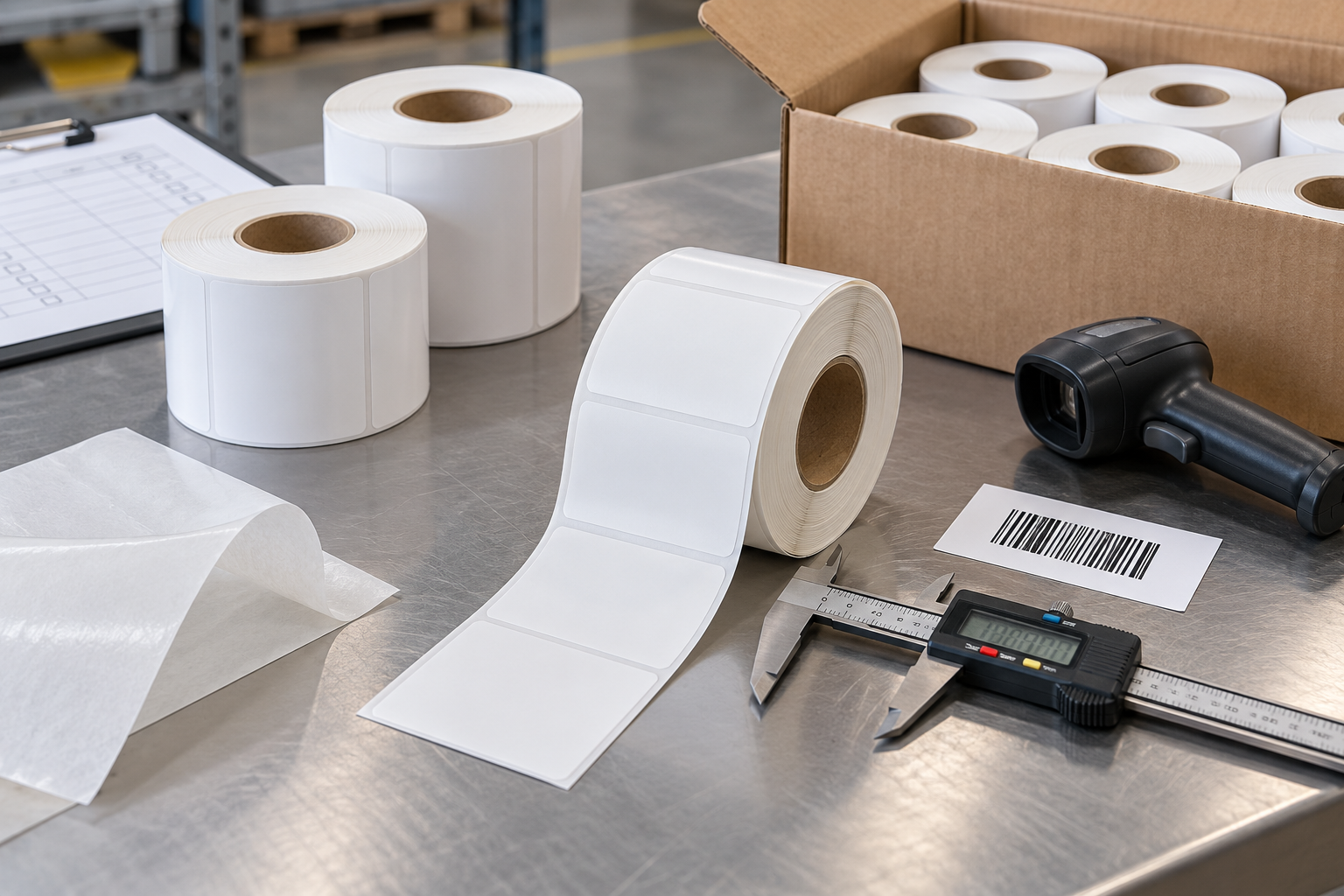
Measure a printed reference mark and the barcode with a ruler or caliper. If the whole image is scaled, focus on driver or resolution conversion. If only the start position shifts, check media calibration and top-of-form settings. If darkness varies but placement is correct, focus on heat, speed, stock, and printhead condition.
Use a controlled media specification
Do not compare printers while changing label stock at the same time. Choose one approved roll specification: direct thermal or transfer, size, core, roll direction, gap or black mark, coating, and adhesive. Confirm that the roll physically fits every printer. If different printer families need different wind directions or core sizes, keep those variants clearly identified while holding the printable surface specification constant.
Request sample thermal label rolls for each printer configuration. A label that prints well on a desktop machine may feed differently through an industrial printer. Record the material lot used in testing, because coating variation can affect the darkness setting. Do not compensate for a poor roll by pushing every printer to maximum heat.
For a replacement roll, compare it with an approved direct thermal label under the same print file, scanner, and handling conditions. If results differ, investigate the stock and printer combination before approving a fleet-wide setting change.
Calibrate and inspect each model
Load the media according to the model’s guide and run the manufacturer’s media calibration procedure. Then print a standard test file with a border, fine text, a barcode, and a serial or date field. The border reveals clipping and skew; fine text reveals blur; the barcode checks the most important scan requirement.
Clean the printhead and platen according to the printer maker’s instructions before using a failed sample as evidence. A worn or dirty printhead can create vertical white lines that no template change will fix. Note the printer firmware and driver version, but do not update the entire fleet during the same experiment. Change one variable at a time and keep a known-good configuration available.
Use the lowest darkness and reasonable speed that produce a robust print on the approved stock. More heat is not automatically better. Excess heat can thicken bars, blur small characters, and shorten printhead life. Verify with the scanner actually used by staff rather than relying on visual inspection alone.
Build one validation sheet for every device
For each printer, print several consecutive labels, not one. Measure top and side margins, check the first and last labels for drift, scan the barcode, and compare the displayed data to the source record. Repeat after a roll change and after the device has been idle. Capture model, serial number, location, driver version, firmware, template version, stock lot, darkness, and speed.
Have a second person compare the results against the approved sample for critical workflows. Record exceptions as specific failures, such as “left quiet zone clipped on printer B,” not “printer B bad.” That makes the correction obvious and avoids random setting changes.
After acceptance, store a small configuration card at the printer or in the team’s device inventory. Limit who can change core print settings. If an operator must change media type or label size, provide a short return-to-standard procedure and a test print requirement.
Handle mixed fleets without hiding differences
Sometimes one template cannot meet the standard on every model. In that case, maintain model-specific templates derived from a controlled master. Give them clear version numbers and a common test suite. This is better than allowing each site to edit its own copy. When a printer is replaced, treat it as a new qualification, even if its model name is similar.
The practical goal is not identical settings. It is identical, reliable information on the finished label. Once the required output is defined and measured, different printers can be managed without letting small configuration differences become shipping errors.
Control changes after the initial qualification
Once each printer passes, changes to templates, drivers, firmware, scanner configuration, or label stock should trigger a defined retest. The test need not be long for every change, but it must include the highest-risk label and an actual scan. Keep a known-good sample and the previous configuration until the new output is accepted. If a printer begins failing mid-shift, compare its newest sample with that baseline before adjusting darkness. This protects the fleet from configuration drift, where each local fix makes the label slightly different. A shared change log also helps identify whether several sites began having trouble after the same software or stock update.