A thermal label prints too dark when the printer applies more heat, pressure, or dwell time than the media requires, or when the label coating is more sensitive than the saved setting. Reduce darkness in small steps, verify speed, clean the printhead and platen, and use the lowest energy that produces a clear, scannable image.
Overprinting is not merely cosmetic. Excess heat can widen barcode bars, close narrow spaces, activate the background, curl light media, burn through thermal-transfer ribbon, and shorten printhead life. Judge quality with barcode verification rather than choosing the visually blackest result.
What Does Overheating Look Like?
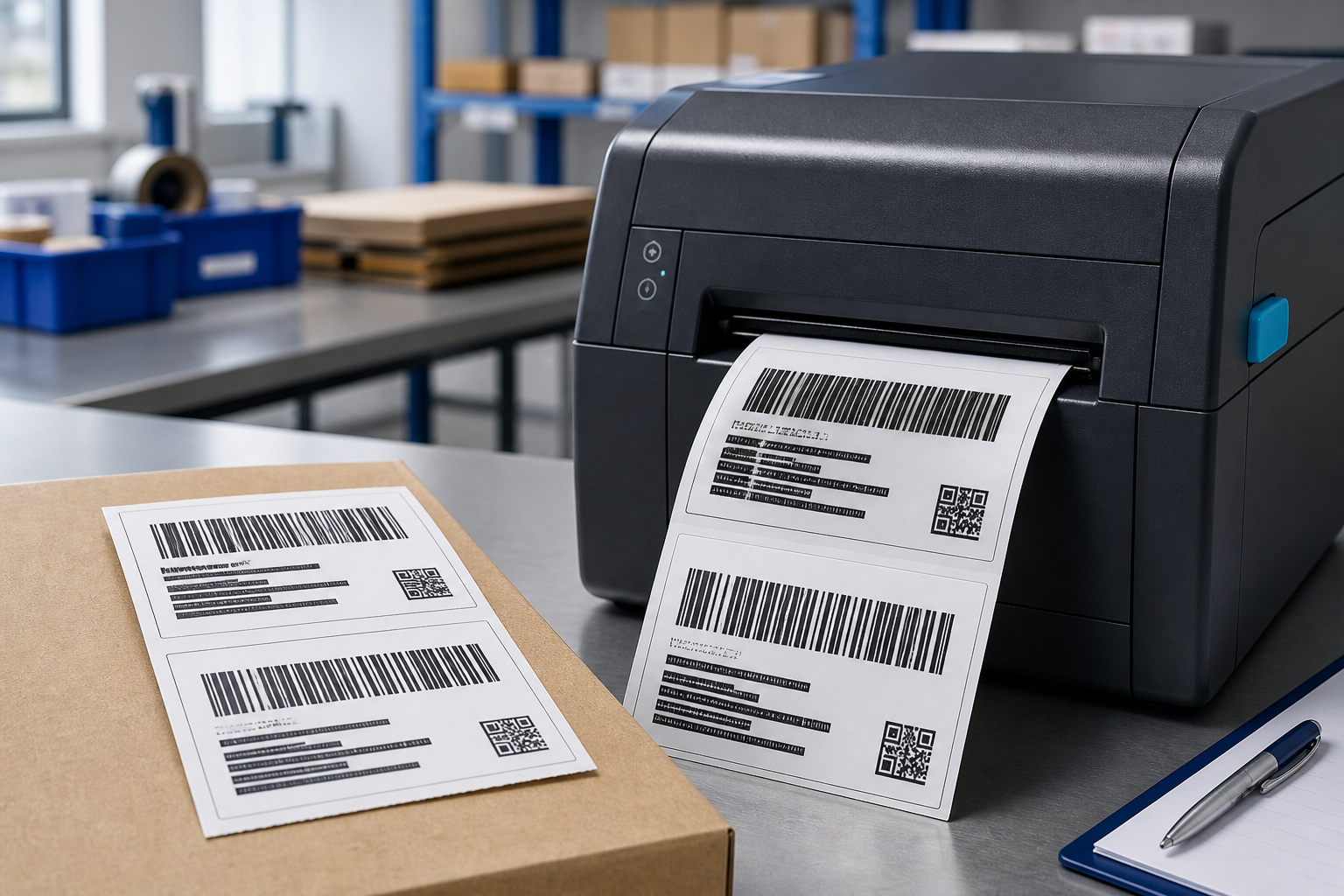
Text may appear bold or fuzzy, barcode edges may spread, white gaps may narrow, and the label background may develop gray patches. Large dark areas can look glossy or distorted. In thermal transfer, ribbon can wrinkle, smear, or separate poorly.
Compare the print with the digital design under magnification. If thin lines become thick or small counters in letters close, the energy is excessive even if the label looks impressive at arm’s length.
Is the Darkness Setting Too High?
Lower the darkness one step at a time and print the same test label. Stop at the lowest setting that creates solid bars and readable text. Check settings in the printer menu, driver, label application, and command stream because one layer may override another.
After a driver or software update, defaults can change. Print a configuration label and compare it with the approved setup record. Avoid using the maximum darkness as a universal standard across materials.
Is the Print Speed Too Slow?
Slower printing gives the media more time to absorb heat. A darkness value appropriate at high speed may overactivate the coating after speed is reduced. Test speed and darkness as a pair rather than treating them as independent controls.
Use a speed that meets throughput needs while maintaining stable image quality. Extremely slow printing can also increase heat concentration on sensitive media. Follow the supply and printer recommendations.
Did the Label Material Change?
Thermal coatings have different activation temperatures and response curves. A new top-coated, high-sensitivity, thinner, or more premium grade can print darker with the same setting. Lot or supplier changes should be validated before production.
Compare the problem roll with retained approved thermal labels. Confirm product code, lot, face, adhesive, liner, and storage history. Do not assume identical dimensions mean identical imaging chemistry.
Can the Printhead or Platen Be Dirty?
Contamination usually causes missing or pale areas, but adhesive and debris can also alter pressure and create dark streaks or smears. A dirty platen may make transport irregular, allowing excessive heat in some regions. Clean both according to the manufacturer procedure.
Never scrape a dark deposit from the printhead. Use approved swabs, lint-free materials, and solvent, then let it dry. Inspect the peel bar and guides for adhesive that transfers back to the label face.
Why Is Only One Side Too Dark?
Uneven printhead pressure or incorrect toggle position can make one side darker. The opposite side may appear pale, leading operators to raise global darkness and worsen the imbalance. Center or adjust pressure using the printer’s documented method.
Confirm media width, guide position, and platen condition. Do not exceed the minimum pressure needed for even printing. Wide labels and thick constructions may require a different approved setup than narrow stock.
Why Does the Background Turn Gray or Black?
Direct thermal coating can react to excessive printer heat, environmental heat, friction, sunlight, or chemical contact. If unused labels already appear gray, isolate the roll and review storage and handling. A printer adjustment cannot restore damaged media.
Keep labels away from heaters, vehicle dashboards, hot packing equipment, solvents, oils, plasticizers, and strong light. Use a more resistant construction or thermal transfer when the environment exceeds direct thermal limits.
How Does Excess Darkness Affect Barcodes?
Barcode scanners depend on the width and contrast of both bars and spaces. Heat spread makes black bars wider and white spaces narrower, changing the encoded pattern. Dense barcodes and small 2D modules are especially sensitive.
Scan or grade the barcode after application. Carton texture, curvature, clear wrap, and wrinkles can add further distortion. A barcode that scans once with a phone is not necessarily robust for high-speed carrier equipment.
What Test Should You Run?
- Clean the printer and load a verified media lot.
- Print identical labels across a controlled darkness range.
- Repeat at realistic speeds.
- Inspect edges and background under magnification.
- Verify barcodes on the actual package and retain the approved sample.
Include the smallest text and densest barcode used in production. Run enough labels to warm the machine and test near the roll core. Record the selected speed and darkness in both the printer and software profile.
When Is Dark Print a Material or Hardware Problem?
If reasonable settings cannot produce a clean image, test another approved media lot. If the problem follows the roll, review coating and storage. If it remains with different materials, inspect pressure, platen, printhead, power, driver, and command settings through qualified service.
Give the label maker sample prints, printer model, resolution, speed, darkness, lot, and defect location. Correctly dark thermal printing has solid features and clean white space; it does not require the highest heat available.
How Do You Confirm the Correct Darkness Setting?
Print a small sequence at nearby darkness values while keeping speed, media, ribbon, and pressure unchanged. Select the lowest value that produces complete text and clean barcode edges, then scan several labels rather than judging only by appearance.
Document the selected setting for that exact construction. A different coating or ribbon may need a new test even when the dimensions are identical. If dark output appears suddenly with the same approved setup, restore the saved preset, inspect for a driver override, clean the head and platen as directed, and compare a known-good roll.
Avoid using darkness to hide wrinkles, pressure imbalance, or incompatible ribbon. Heat is only one variable. Stable results come from matching consumables and settings, then verifying the printed code under real scanning conditions.