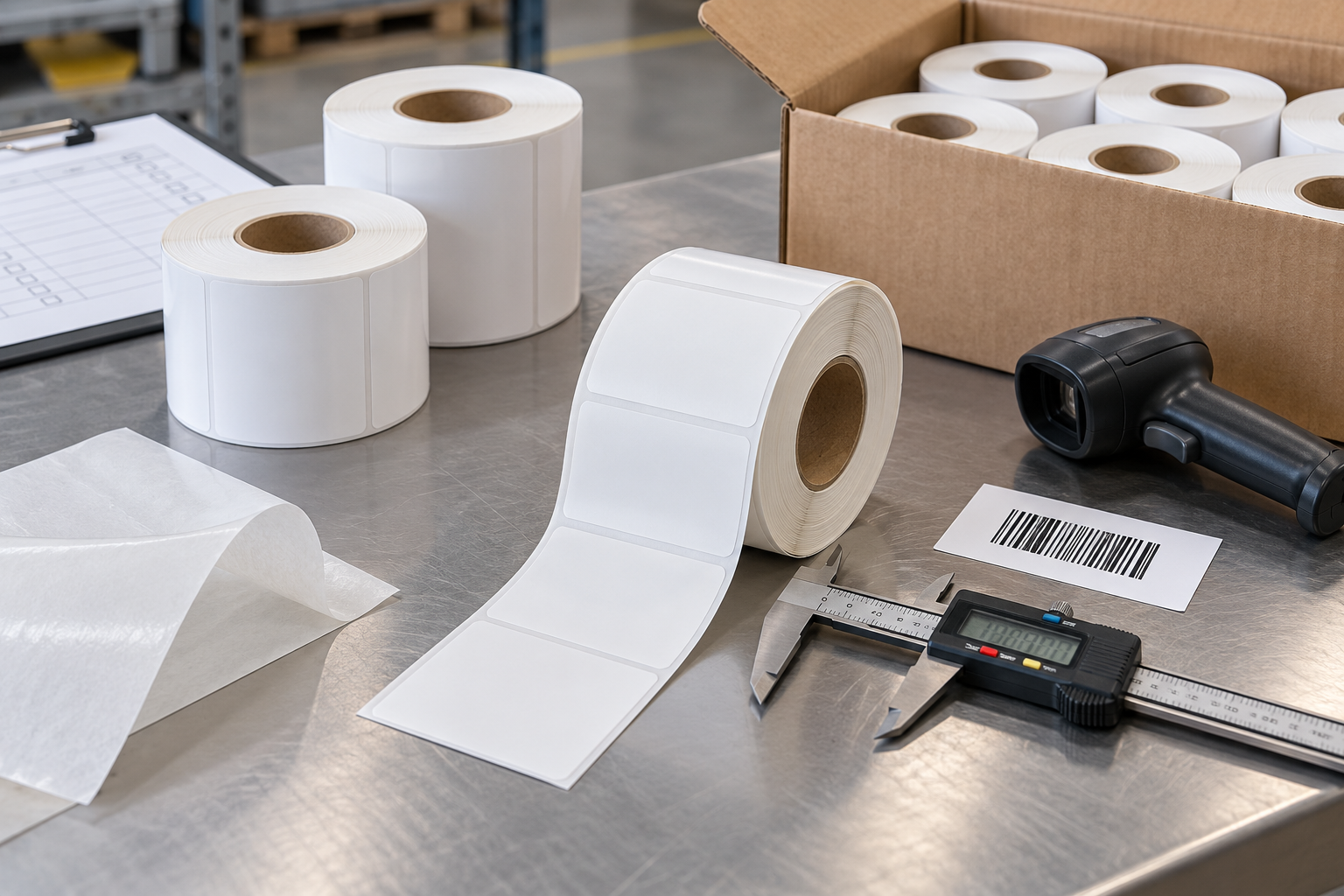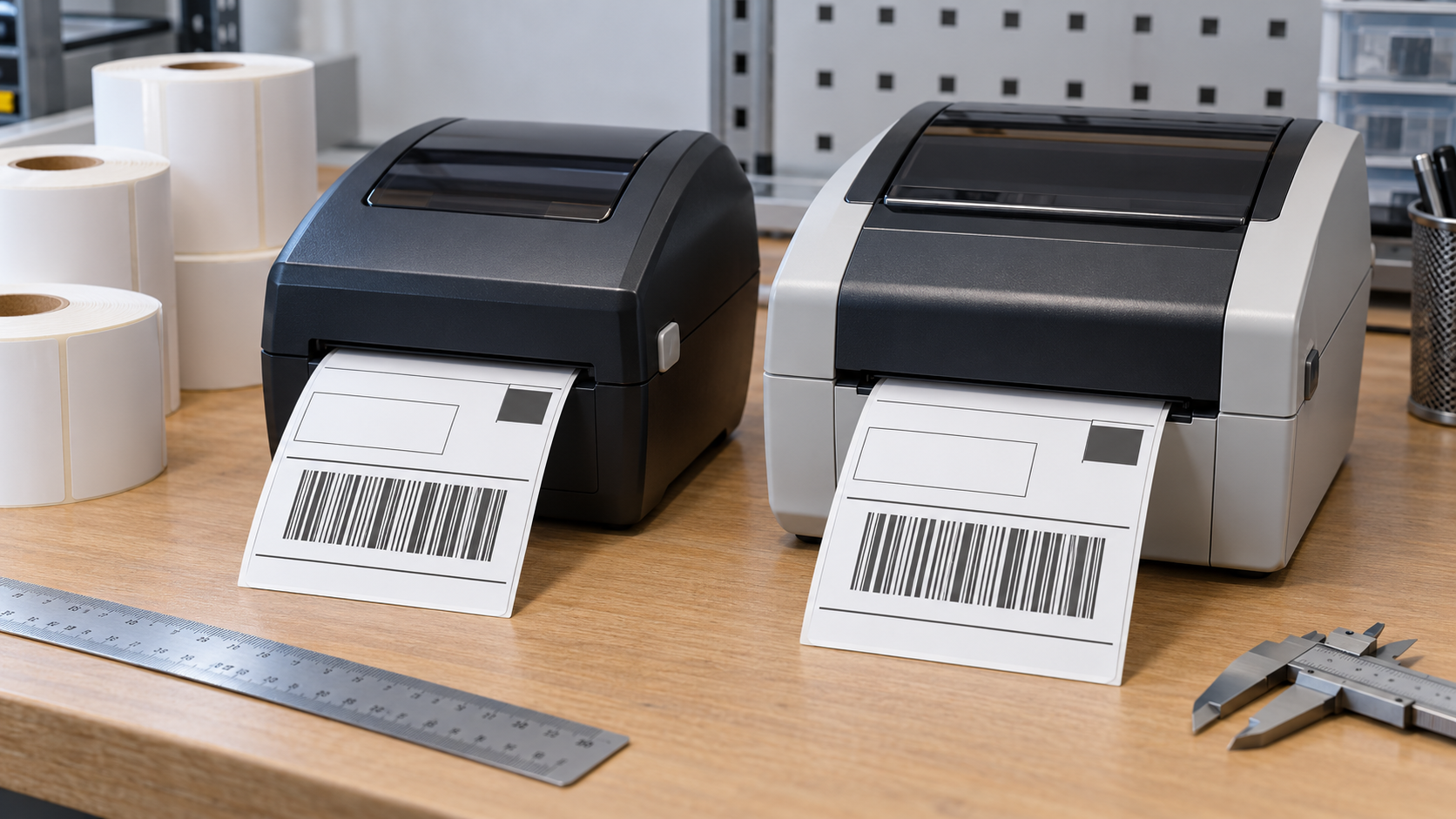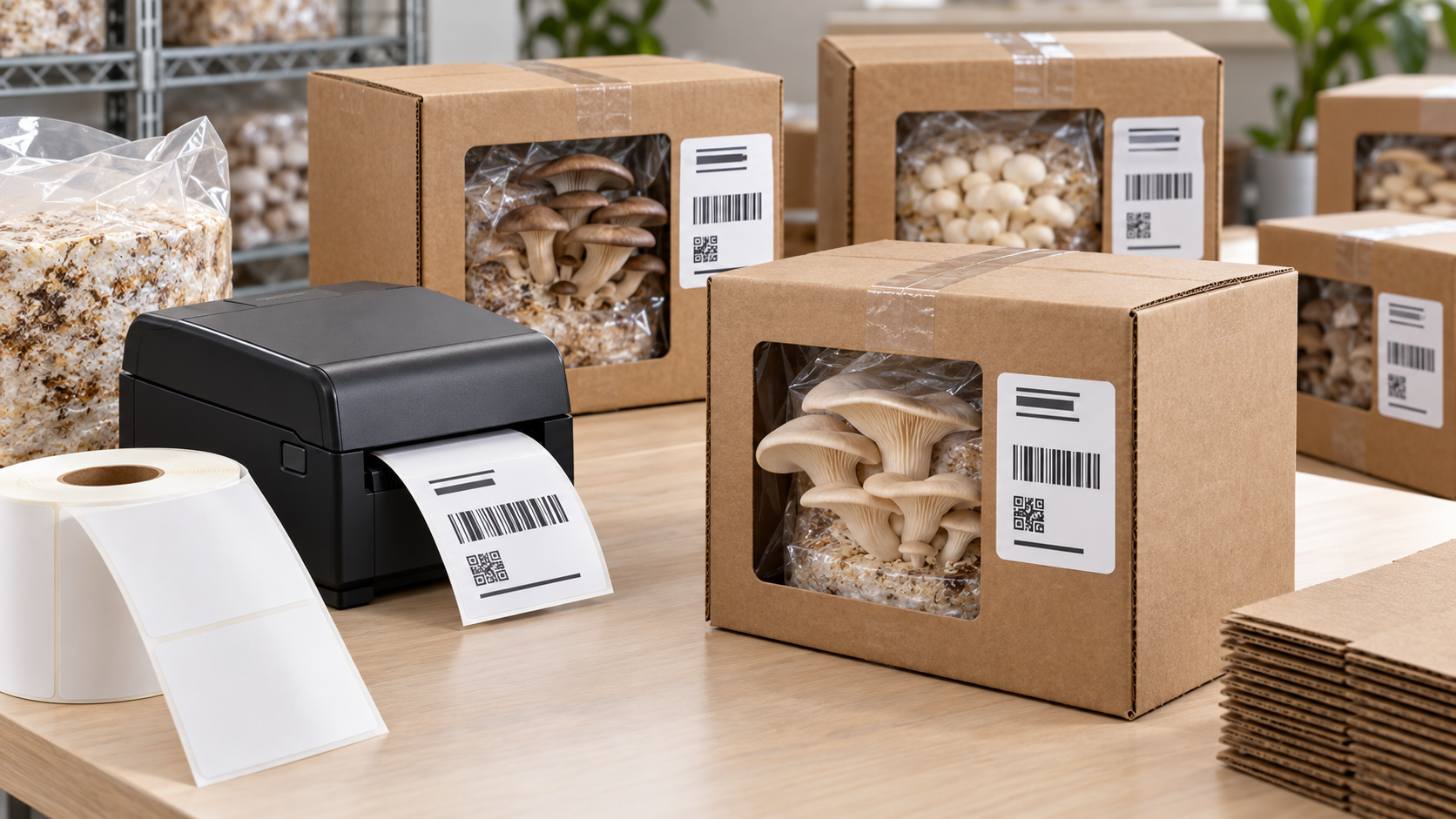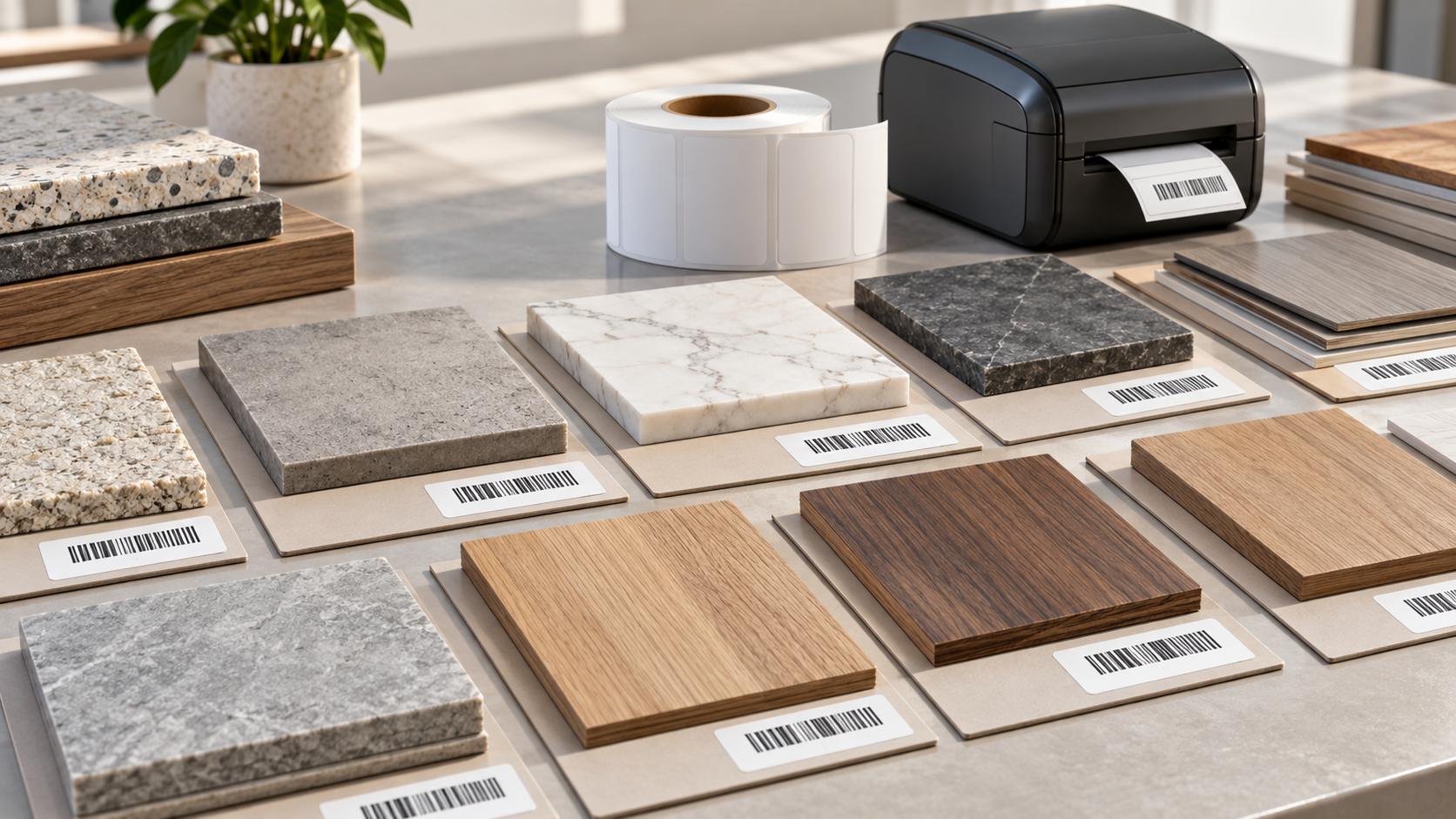
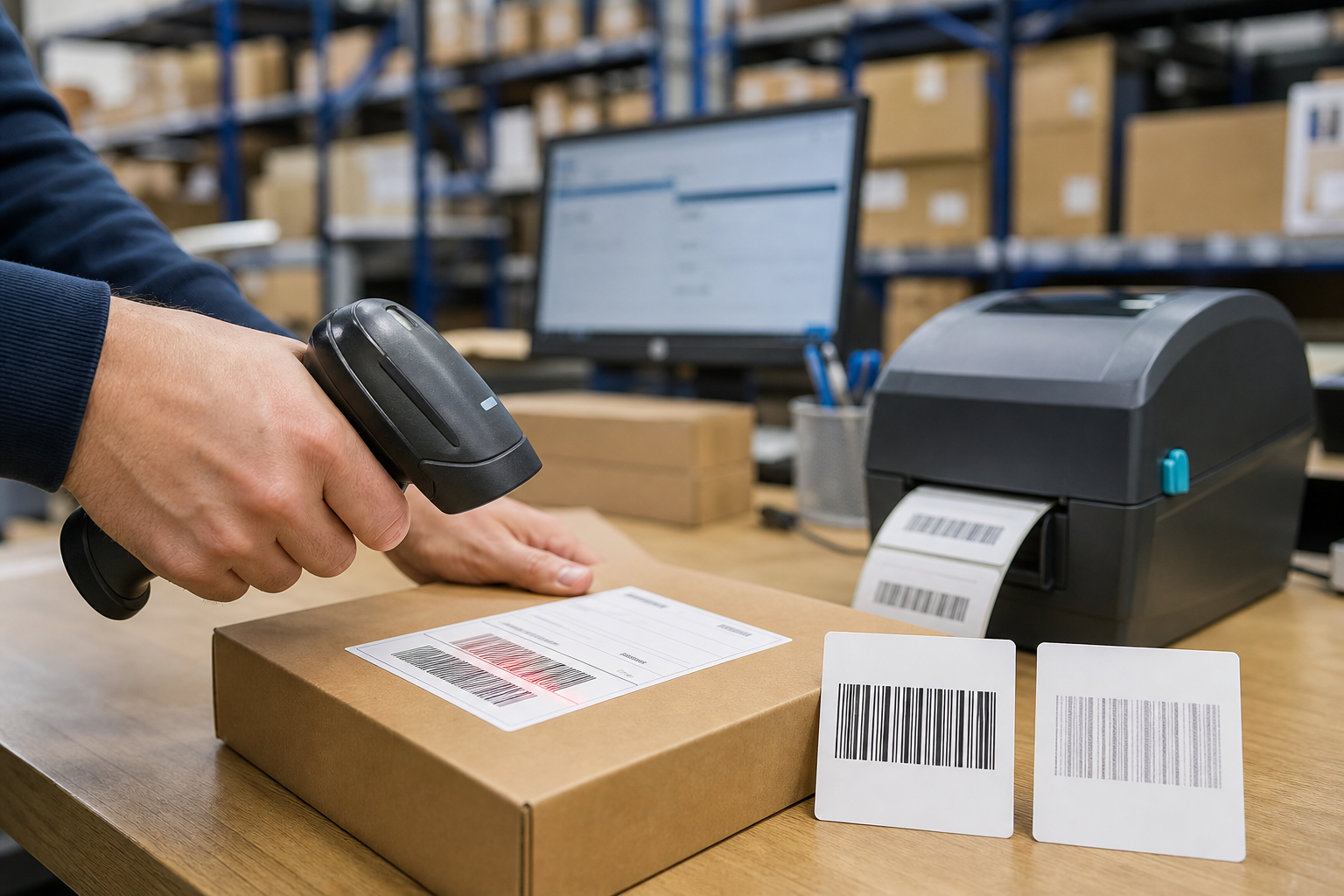
A thermal label barcode will not scan when the scanner cannot distinguish the bars, spaces, and quiet zones accurately. Common causes include pale printing, excessive darkness, incorrect sizing, low printer resolution, damaged labels, missing quiet zones, wrinkles, glare, curvature, poor placement, incorrect data, or an unsuitable barcode type.
Start by printing one known-good template on clean media. Scan it before application, then scan it again after it is attached to the real package. This separates printer and template problems from surface, placement, and handling problems.
Can a Barcode Look Clear but Still Be Unreadable?
Yes. A barcode can look acceptable to the eye while its bars are too wide, too narrow, distorted, or too close together for the scanner. The encoded data may also be invalid even when the image looks sharp.
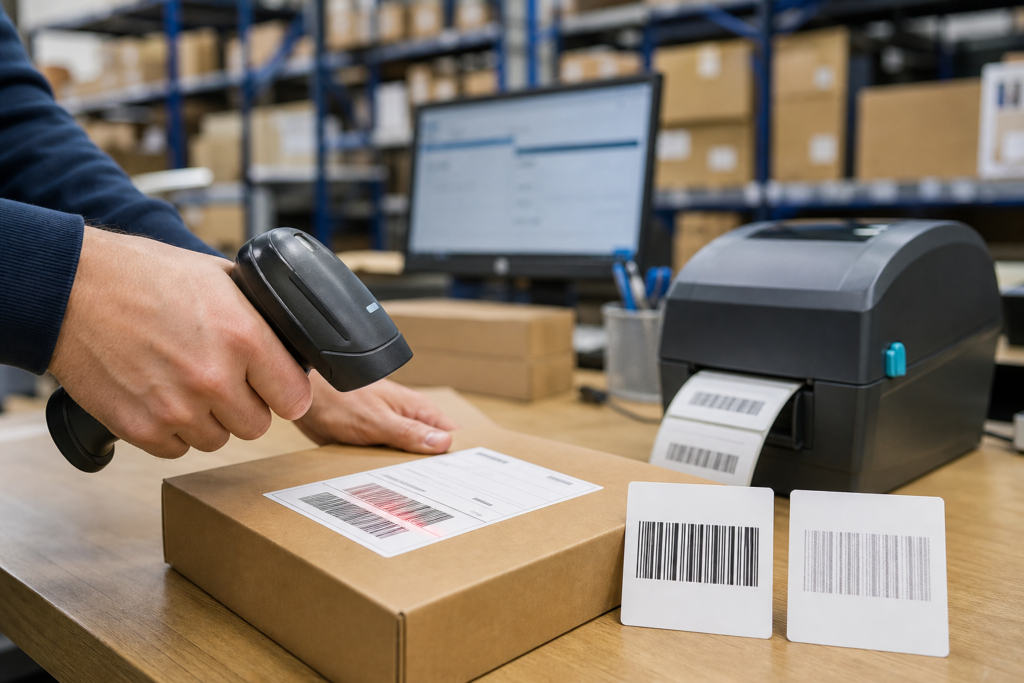
Test with the scanner used in production and, when required, use a barcode verifier. A successful scan from one phone does not prove that warehouse, carrier, retail, or automated equipment will read it reliably. Check both first-pass scanning and the decoded value.
Why Does Pale Printing Cause Scan Failure?
Pale printing reduces the contrast between dark bars and the light background. Causes include low darkness, excessive print speed, a dirty printhead, worn printer components, incompatible media, or a label surface that does not respond well at the selected setting.
Clean the printhead and platen, calibrate the printer, and print the production template. Reduce speed or increase darkness in small steps. Scan several labels after each change. If a vertical white line remains in the same position, inspect the printhead for contamination or a failed element.
Can Printing Too Dark Make a Barcode Fail?
Yes. Excessive heat makes printed bars spread into the spaces between them. This is called bar growth. The barcode may appear bold but no longer has the correct geometry.
Reduce darkness gradually and compare scans. Do not use maximum heat to make the label look darker. Excessive settings can also shorten printhead life and contribute to media problems. Use the lowest darkness that produces clear, consistent contrast at the required speed. Record the approved setting for each barcode label product.
Does Barcode Size Matter?
Yes. Every barcode type has limits for bar width, height, magnification, and data capacity. Shrinking a barcode to fit a small label can make individual bars narrower than the printer can reproduce.
Create the barcode at the required final size instead of resizing an image in a document or browser. Use a larger label when necessary. For long data strings, choose a suitable symbology or reduce unnecessary encoded data. Do not compress the barcode horizontally or stretch it vertically to fill space.
What Is a Barcode Quiet Zone?
The quiet zone is the blank area beside a barcode that allows the scanner to identify where the symbol begins and ends. Text, borders, graphics, package printing, or a die-cut edge placed too close can remove this space.
Keep the required blank margin on both sides and any other sides specified for the barcode type. Do not place a barcode against the edge of the label. Print the complete production layout, because a barcode tested alone may scan while the final design fails after nearby content is added.
Can Printer Resolution Cause Barcode Problems?
Yes. Printer resolution determines the dot grid used to create bars. Very small barcodes, dense two-dimensional codes, and tiny text may require a higher-resolution printer or a larger symbol.
Design bar widths in whole printer dots whenever the labeling software supports it. Confirm whether the printer is 203, 300, or another dots-per-inch resolution. Do not send a template designed for one resolution to another printer without testing. Increasing image-file resolution does not add physical dots to the printhead.
Why Does a Barcode Scan Before Application but Fail on the Package?
The package may bend, wrinkle, reflect light, show through a clear label, or place the barcode across a seam. Curved bottles distort bar spacing when the symbol wraps too far around the surface.
Apply the label to a flat, smooth, clean area. Keep the complete barcode on one panel and away from corners, tape edges, closures, and rough texture. On curved products, orient bars to reduce distortion and use a size that does not wrap beyond reliable scanner view. Test the applied product from normal scanning angles.
Can Damage and Fading Stop a Barcode From Scanning?
Yes. Heat, sunlight, water, oils, chemicals, scratches, folds, and abrasion can lower contrast or remove part of the symbol. A small damaged area can be enough to break some one-dimensional barcodes.
Choose media for the required environment and place the label in a protected area. Use top-coated or synthetic direct thermal media when moisture and handling are concerns. Use thermal transfer for long retention, outdoor exposure, harsh chemicals, or heavy abrasion. Scan samples after environmental testing, not only immediately after printing.
Can Clear Tape or Lamination Affect Scanning?
Yes. Glossy tape, pouches, and laminates can create glare, wrinkles, bubbles, or optical distortion. Some films and adhesives can also affect direct thermal images over time.
Do not cover carrier or operational barcodes unless the workflow permits it. If protection is necessary, test the exact film, label, package, scanner, and lighting. Apply the film flat without wrinkles. A purpose-built resistant label may perform better than adding a reflective protective layer.
Can Incorrect Barcode Data Cause Failure?
Yes. The software may encode unsupported characters, an invalid check digit, an incorrect application identifier, or data that is too long for the selected format. The scanner may read the symbol but the receiving system rejects the value.
Compare the decoded value with the source record. Confirm barcode type, check-digit rules, character set, data length, and system requirements. Test production data containing the longest and most complex expected values. A media change will not fix invalid encoded data.
How Do You Troubleshoot a Barcode That Will Not Scan?
1. Print a known-good test and scan it before application.
2. Clean, calibrate, and confirm printer speed and darkness.
3. Check barcode size, quiet zones, orientation, and data.
4. Scan with the actual production devices.
5. Apply the label to the real package and scan again.
6. Reproduce heat, light, moisture, chemicals, and handling.
7. Change one variable at a time and save failed samples.
What Information Should Be Sent to a Supplier?
Send the label supplier the printer model and resolution, media item and batch, speed, darkness, template, barcode type and size, package surface, scanner model, photographs, failed samples, and details of environmental exposure.
State whether the barcode fails immediately, after application, or after storage. Test an approved roll in the affected printer and the suspected roll in another compatible printer. This shows whether the problem follows the media, equipment, template, package, or environment.